Thursday, July 23, 2020

ATGM336H-5N/ESP32, read GPS position using TinyGPS++

To read ATGM336H-5N GNSS Module from ESP32/ESP8266, or Arduino, the TinyGPS++ library can be use.


 TinyGPS++ is a new Arduino library for parsing NMEA data streams provided by GPS modules. To install this library, download here, unzip the archive into the Arduino “libraries” folder, and restart Arduino. You should rename the folder “TinyGPSPlus”.

The TinyGPS++ connect GPS module using SoftwareSerial. To make it work on ESP32, install EspSoftwareSerial in Arduino IDE Library Manager.


Now you can open TinyGps++ DeviceExample.


Modify the RXPin and TXPin to match with you connection. It's 16 and 17 in my case. And change GPSBaud to 9600.
/*
Connection between ESP32 and ATGM336H-5N:
ESP32		ATGM336H-5N
-----------------------
VCC		VCC
GND		GND
16 (RX)		TX
17 (TX)		RX
*/
static const int RXPin = 16, TXPin = 17;
static const uint32_t GPSBaud = 9600;

Verify and Upload to run it.


Wednesday, July 22, 2020

ATGM336H-5N, GNSS Module support BDS (BeiDou Navigation Satellite System)

ATGM336H-5N is a BDS/GNSS Whole Constellation Positioning And Navigation Module.


The BeiDou Navigation Satellite System (BDS) (北斗卫星导航系统) is a Chinese satellite navigation system.

reference: Wikipedia - BeiDou

The ATGM336H-5N series of module, package size for the 9.7mmX10.1mm is a
general term of high performance BDS/GNSS whole constellation positioning and
navigation module series.The series of module products are based on the fourth
generation low power consumption GNSS SOC single chip of Zhongke micro -
AT6558,support a variety of satellite navigation systems, including the Chinese BDS
(Beidou satellite navigation system), American GPS, Russian GLONASS, EU Galileo,
Japanese QZSS and Satellite enhanced system SBAS (WAAS,EGNOS,GAGAN,
MSAS)). AT6558 is a real sixes in one multi-mode satellite navigation and
positioning chip, including 32 tracking channels, can simultaneously receive GNSS
signals of six satellite navigation systems and implement joint positioning, navigation,
and timing.

ATGM336H-5N series of modules have high sensitivity, low power, low cost and
other advantages, suitable for vehicle navigation, handheld positioning, wearable
devices and you can directly replace the LEA series modules of Ublox. 


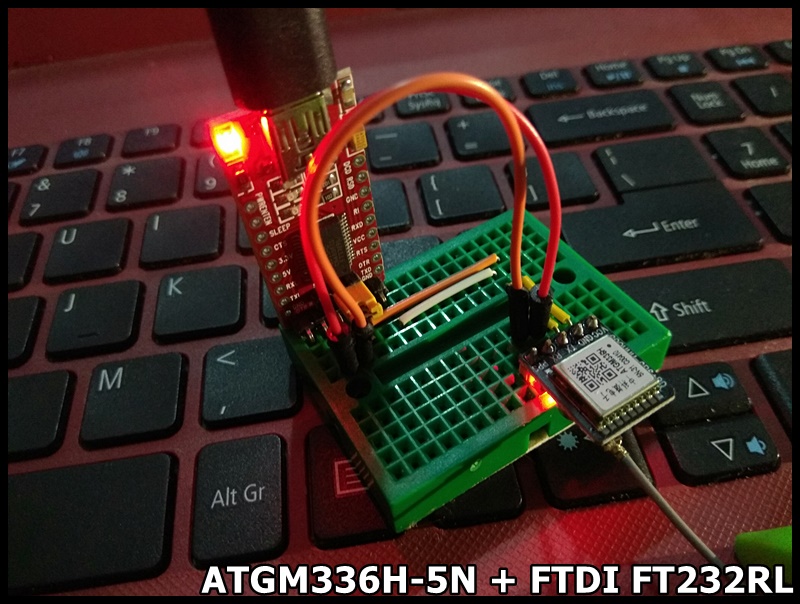
To first test the ATGM336H-5N module. I install Ublox's u-center on Windows, connect the module using a FTDI FT232RL USB to Serial board.

Connection between ATGM336H-5N and FT232RL
VCC(ATGM336H-5N) <---> VCC(FT232RL)
GND(ATGM336H-5N) <---> GND(FT232RL)
TX(ATGM336H-5N)    <---> RX(FT232RL)
RX(ATGM336H-5N)    <---> TX(FT232RL)

Install and run Ublox - u-center (GNSS evaluation software for Windows)


Next:

Tuesday, July 14, 2020

ESP32 + 1.3 inch 240x240 IPS LCD (ST7789 SPI interface), using TFT_eSPI library


It's a 1.3 inch 240x240 IPS LCD, with driver ST7789 using SPI interface.

7 pins are used to connect to MCU:

# Pin Label Description
1 GND LCD Power ground
2 VCC LCD power supply is positive (3.3V)
3 SCL LCD SPI bus clock signal - connect to ESP32 18 TFT_SCLK
4 SDA LCD SPI bus write data signal - connect to ESP32 23 TFT_MOSI
5 RES  LCD reset control signal(Low level reset) - connect to ESP32 4 TFT_RST
6 DC   LCD register/data - connect to EST32 2 TFT_DC
7 BLK LCD backlight control signal - Connect to 3.3V


Product page: lcdwiki : 1.3inch IPS Module

This video show how to setup on Arduino IDE, using TFT_eSPI library on ESP32 (ESP32-DevKitC), to drive the 1.3 inch 240x240 IPS LCD.


Using TFT_eSPI, if you load a new copy of TFT_eSPI then it will over-write your setups if they are kept within the TFT_eSPI folder. It's suggested to create a new folder in your Arduino library folder called "TFT_eSPI_Setups". You then place your custom setup.h (Setup24_ST7789_ESP32.h in my exercise) files in there. After an upgrade simply edit the User_Setup_Select.h file to point to your custom setup file. (ref: https://github.com/Bodmer/TFT_eSPI)

- Makesure TFT_eSPI library is installed in Arduino IDE.
- Create "TFT_eSPI_Setups" folder under your Arduino library folder.
- Copy the file TFT_eSPI/User_Setups/Setup24_ST7789.h to TFT_eSPI_Setups folder, re-name it Setup24_ST7789_ESP32.h.

- Edit Setup24_ST7789_ESP32.h to match our connection:


- Edit User_Setup_Select.h file to point to the custom setup file, Setup24_ST7789_ESP32.h.


- Then you can try examples of TFT_eSPI.